Chores
Beacon’s chore system lets you create tasks, assign them to family members, set dollar values, and track completion with streaks and a leaderboard. It is designed to motivate kids (and adults) to pitch in around the house.
Opening the Chores panel
- Click the checklist icon in the sidebar (the third icon from the top)
- A slide-out panel opens from the right side of the screen
- Click the X button or click the backdrop to close the panel
On mobile, tap Chores in the bottom tab bar.
Creating a chore
- Open the Chores panel
- Click + Add Chore at the bottom of the panel
- The “New Chore” form appears with these fields:
Icon
Choose from 12 emoji icons:
- Broom, Plate, Dog, Bed, Book, Trash, Shirt, Laundry basket, Toothbrush, Shower, Soap, Flexed bicep
Name
Enter the chore name (required). Examples: “Vacuum living room”, “Feed the dog”, “Make bed”.
Value
Set a dollar value for the chore. The default is $1.00. Use the step control (increments of $0.25) to adjust. Set to $0.00 if you do not want a monetary value.
Frequency
| Option | Description |
|---|---|
| Daily | Must be completed every day |
| Weekly | Must be completed once per week |
| One-time | Only needs to be done once, then disappears |
Assign To
Select one or more family members. Tap a member’s name to toggle them on/off. Selected members show a colored border. At least one member must be assigned (the Add Chore button is disabled otherwise).
- Click Add Chore to save
Chore display
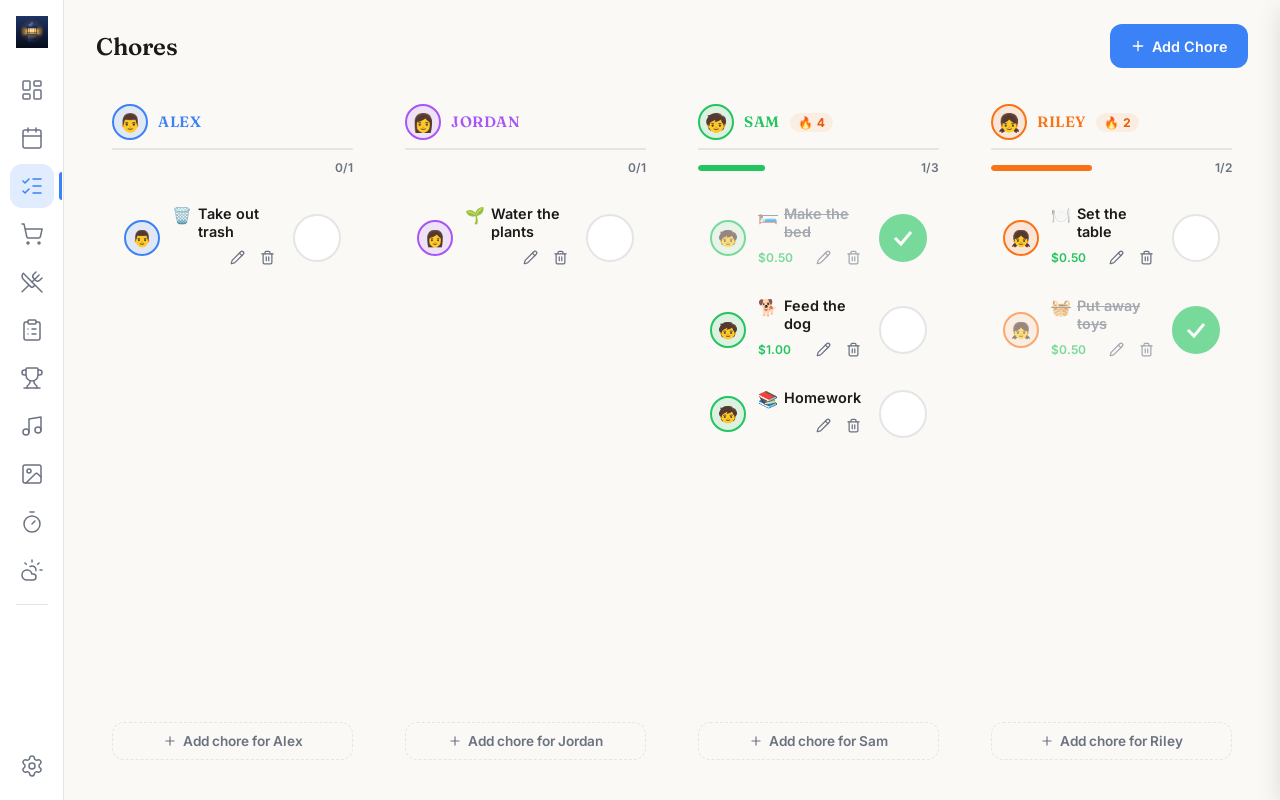
Chores are grouped by family member in the Chores panel. Each member group shows:
- Member header: Avatar, name, and streak badge
- Progress bar: Shows completed/total chores for today, colored with the member’s color
- Chore cards: One card per assigned chore
Each chore card displays:
- The member’s avatar (left side)
- The chore icon and name
- The dollar value (if > $0)
- A checkbox (right side) — checked if completed today
Completing chores
- Tap the checkbox on a chore card
- The checkbox animates with a bounce effect
- The chore card dims to indicate completion
- The progress bar updates
Undoing a completion
Tap the checkbox again to undo. The completion is removed and the chore returns to its incomplete state.
Guest check-offs
When guest mode is on, a guest can check off a chore. If it is assigned to a family member, it still awards points and counts toward streaks. An unassigned chore a guest checks off is recorded as Guest and earns no points (from 1.52.0). The completed card on this screen shows Checked off by Guest. Guests cannot add, edit, or delete chores, claim an unassigned chore, or redeem rewards.
Swipe gesture
On touch devices, you can swipe left on a chore card to see a “Skipped” indicator. This is visual feedback only — it does not change the chore’s completion status and resets after 2 seconds.
Streak tracking
Streaks reward consistency. Here is how they work:
How streaks are calculated
- When a family member completes any chore, the system checks the last chore day that already counted toward their streak
- If that was the previous chore day, the streak increments by 1
- If that was this chore day (already counted), the streak stays the same
- If that was more than one chore day ago, the streak resets to 1
- The longest streak is updated whenever the current streak exceeds it
“Today” and “yesterday” here are chore days, the same day the chore chart uses (set by Daily Reset Time, from 1.46.4). Past streaks are unchanged.
Streak badge
The streak badge appears next to each member’s name in the Chores panel and Leaderboard. It shows:
- A fire emoji and the current streak count (e.g., “7”)
- Hot streak: When the current streak reaches 7+ days, the badge gets a “hot” visual style
- Tap to toggle: Tapping the badge toggles between showing the current streak and the longest streak (“Best: 14”)
Streak reset
Streaks reset to 1 when a member misses a day. There is no grace period — if no chore is completed on a given day, the streak resets the next time a chore is completed.
Leaderboard
The leaderboard ranks family members by earnings over a time period.
Opening the leaderboard
- Click the trophy icon in the sidebar
- A slide-out panel opens from the right
Period toggle
Toggle between:
- This Week: Sunday through Saturday of the current week
- This Month: First day through last day of the current month
Ranking
Members are ranked by total earnings (dollar value of completed chores) in descending order:
- Position 1: Gold medal emoji
- Position 2: Silver medal emoji
- Position 3: Bronze medal emoji
- Position 4+: Numeric rank (#4, #5, etc.)
Each row shows:
- Rank medal/number
- Member avatar
- Member name
- Number of chores completed in the period
- Streak badge
- Total earnings (e.g., “$12.50”)
Members with zero earnings still appear on the leaderboard (at the bottom).
Tips for motivating kids
- Start small: Begin with 2-3 daily chores per child. Add more as they build the habit.
- Set meaningful values: Tie chore values to things kids want. If a toy costs $20, they can see the progress toward earning it.
- Celebrate streaks: Call out streak milestones at dinner. “Alex hit a 7-day streak!”
- Weekly payout: Use the leaderboard’s weekly view to do a Sunday “payday” where kids receive their earnings.
- Mix frequencies: Use daily chores for routine tasks (make bed, feed pet) and weekly chores for bigger tasks (vacuum, clean bathroom).
- Keep it visible: Mount the display where kids pass it regularly — near the kitchen or in a hallway.
- Let them choose: Give kids a say in which chores they take on. Ownership increases follow-through.
- Bonus chores: Add occasional one-time chores with higher values for extra motivation.
Data storage
Chore data is stored in the browser’s localStorage:
| Key | Contents |
|---|---|
beacon_chores | List of chore definitions |
beacon_completions | Log of all chore completions with timestamps |
beacon_streaks | Streak records per member |
This data persists across page reloads but is tied to the specific browser/device.
Daily Reset Time
Under Settings → Chores → Daily Reset Time, you set when the chore day starts. The default is 00:00 (local midnight). If the setting is unset, empty, or not a valid HH:mm, Beacon treats it as midnight.
From 1.46.2, that same chore day is what the chore chart means by “today”. Privilege switches, the local_date on beacon_chore_completed and beacon_all_chores_done, “what chores are left,” and streaks all use it too. A completion at 23:00 with the reset set to 04:00 stays on that chore day until 04:00. Stored completions and settings are not migrated. Routines still follow calendar midnight.
Changed in 1.46.4. Streaks now count by the chore day set in Daily Reset Time, the same as the chore chart; past streaks are unchanged.
Home Assistant privileges and events
From 1.45.0, when a child finishes today’s chores, Beacon can turn on a switch, toggle, light, or fan, and it fires beacon_chore_completed and beacon_all_chores_done for automations. “Today” follows Daily Reset Time, as of 1.46.2. See Chore privileges.
Managing Chores with AI and Voice
The Beacon MCP server supports full chore CRUD — LLMs like Claude, Open Claw, and others can create, update, delete, and list chores on your behalf through natural language.
For example, you can say: “Hey, create a chore for Lennon to feed the dog every day, worth $1” and the LLM will handle the rest.
See the AI and Voice Control reference for the complete list of chore tools and setup instructions.
From 1.46.0, Home Assistant Assist and the wall’s hold-to-talk button can complete a Beacon chore, and “what chores are left” reads the current chore day’s chart from the same family data (the day set by Daily Reset Time, as of 1.46.2). “Mark dishes as done” and “Alex finished vacuuming” write the completion in Beacon, fire the chore events, and re-check privilege switches. They do not update todo.chores. The microphone only works over HTTPS or localhost. See Press-to-talk.
Troubleshooting
Chores panel shows “Add family members first”
You need to add at least one family member before you can create or view chores. See Family Members.
Streak reset unexpectedly
Streaks are based on consecutive chore days (the day set by Daily Reset Time), not calendar midnight. If a member completes chores on one chore day and then not again until two chore days later, the streak resets to 1. From 1.46.4, streaks follow that chore day, the same as the chore chart; past streaks are unchanged.
Leaderboard shows $0.00 for everyone
Verify that:
- Chores have a value greater than $0.00
- Chores have been completed within the selected period (This Week or This Month)
- The completions are recorded for the correct member IDs