Meals
Beacon shows today’s planned meals in the Menu widget on the dashboard, and has a Meals week view in the sidebar so you can plan Breakfast, Lunch, Dinner, and Snack for the whole week. You can add, edit, or delete meals from either place, tie a meal to a Beacon recipe, and add that recipe’s ingredients to the grocery list.
This in-app planner needs Beacon 1.48.0 or later.
| Meal | Icon |
|---|---|
| Breakfast | 🌅 |
| Lunch | ☀️ |
| Dinner | 🌙 |
| Snack | 🍎 |
Today’s Menu card
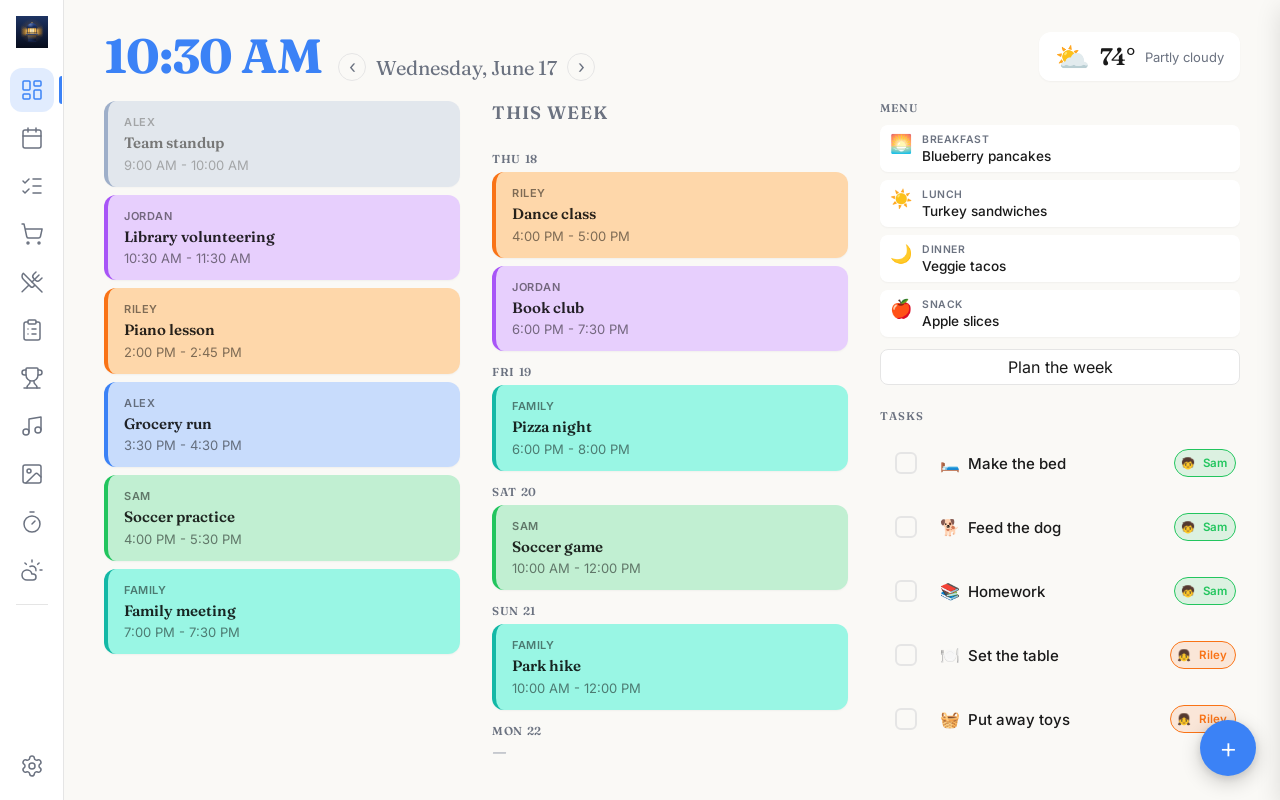
The Menu card is on the dashboard (the sidebar in the Family layout, or the right column in Classic). It lists Breakfast, Lunch, Dinner, and Snack for today.
The card stays on the dashboard even when today has no meals. Each empty row still shows Add meal, so you can add one without opening the week view.
Tap a row to open the same editor used in the week view (name, notes, recipe, and add-to-grocery). Plan the week opens the Meals sidebar view. The dashboard re-reads the plan when you come back to the app, and every 5 minutes.
Dates are local calendar days (YYYY-MM-DD), not UTC, so an evening in US time zones is still today.
The week grid
Open Meals in the sidebar to see a week of Breakfast, Lunch, Dinner, and Snack. Use the arrows to move by week, or Today to jump back to the current week. The week starts on the same day as the calendar (Settings → General → Week Starts On, Sunday or Monday).
Tap a cell to add, edit, or delete a meal. An empty cell says Add meal. The editor asks for:
- Meal name — required to save a meal. Saving an existing meal with the name left blank deletes that slot.
- Notes — optional
- Recipe — none, a recipe you already saved in Beacon, or New recipe
Delete meal removes that date and meal type. Cancel closes the editor without saving.
Recipes and the grocery list
Recipes are stored in Beacon, not only as a name on the meal. Choose New recipe to give it a name and a list of ingredients (one per line), then Save. The meal can point at that recipe.
If the selected recipe has ingredients, Add ingredients to grocery list appends them to the grocery list Beacon already uses: the default grocery list from settings, or the built-in Shopping List. Home Assistant to-do list entities are written the same way as other list adds. This button does not write to Grocy.
How else meals get onto the display
You can still fill the plan from an assistant or from AnyList.
An AI assistant, using Beacon’s MCP server
Beacon’s MCP server includes two meal tools:
| Tool | What it does |
|---|---|
beacon_get_meal_plan | Reads meals for a date (default today), optionally for several days |
beacon_set_meal_plan | Writes the meal plan |
With the Beacon plugin for Claude Code, /whats-for-dinner shows today’s plan. You can also just ask your assistant something like “put tacos on Tuesday for dinner”.
beacon_set_meal_plan merges by default. Each entry adds or updates the one slot for that date and meal type. An entry with no id still matches on date and meal type. A null or empty name clears that slot. Meals on other dates stay put. Pass replace: true to replace the whole plan with the entries you send — that is the previous replace-all behavior.
Changed in 1.48.0. beacon_set_meal_plan now adds or updates only the meals you send instead of replacing the whole plan. Pass replace: true for the old behavior. A null or empty name clears that one date and meal slot.
Syncing from AnyList
If you plan meals in AnyList, the scripts/sync-meals.mjs script in the repo converts AnyList’s meal plan output into Beacon’s format:
node scripts/sync-meals.mjs anylist-output.txt --from 2026-12-01 --to 2026-12-14 > meal-plans.jsonWithout --from and --to, it covers this week’s Monday through three weeks out. It picks the meal type from [Breakfast], [Lunch], [Dinner] or [Snack] in the AnyList entry, and defaults to Dinner.
Meal plan format
Each entry looks like this:
{ "date": "2026-12-01", "meal_type": "Dinner", "name": "Instant Pot Spaghetti" }| Field | Required | Notes |
|---|---|---|
date | Yes | YYYY-MM-DD, in your local calendar day. Beacon does not rewrite stored dates. |
meal_type | Yes | Breakfast, Lunch, Dinner, or Snack |
name | Yes, to keep the meal | What’s being served. A null or empty name, in the MCP merge or when you clear the name and save, removes that slot. |
id | No | Filled in on load when missing (bm_…) |
notes | No | Free text |
recipe_id | No | A Beacon recipe id (br_…), or an older value already stored (including an AnyList recipe id). Existing values are kept. |
On the Home Assistant add-on, the plan is beacon_meal_plans.json in the add-on’s /data folder, so it survives updates and is included in Home Assistant backups. Recipes are stored separately as beacon_recipes.json (schema_version 1, with { id, name, ingredients } for each recipe).
One-time migration
The first time Beacon rewrites an existing plan, it makes a copy first. On the add-on, that copy is beacon_meal_plans.bak.json in the same /data folder. A later rewrite does not replace that backup. In a standalone browser, the same one-time copy is stored as beacon_meal_plans.bak in the browser’s local storage.
On load, Beacon fills in missing meal ids. If an older unused meal-plan.json (or the standalone meal-plan store) is still around, those meals are imported when they are not already in the plan (matched on date, meal type, and name). An empty plan receives all of them. That file is not deleted. Recipes from that older file are copied into beacon_recipes only if that store is empty.
A malformed plan (not a JSON array, or unreadable) is left alone and is not overwritten. See also Updating.
Grocy
Beacon’s grocery integration works with Grocy, but Grocy’s own meal plan doesn’t currently feed the Menu widget, and Add ingredients to grocery list does not write to Grocy. Use the week view, the Menu card, the MCP tools, or the AnyList sync script instead. See Grocery.
Troubleshooting
The Menu card shows empty rows. Nothing is planned for today. Tap Add meal on a row, or open Meals in the sidebar. Dates are YYYY-MM-DD local calendar days.
Meals show on the wrong day in the evening. Versions before 1.40.1 compared meal dates against UTC, so in US time zones the widget could jump to tomorrow’s meals in the afternoon or evening. Update to the latest version.