Dashboard
The dashboard is Beacon’s default view — the first thing you see when you open the app. It is designed to give you a glanceable summary of the day from across the room.
When Magic Import is on, an Import button sits at the lower left so you can paste a school email, a text, or a list, or add a photo or PDF, and review the drafts before saving. The button is hidden in kiosk mode, and while guest mode is on.
To dim the wall in the evening, turn on Night mode under Settings → Display. It is off until you enable it. A tap, or a finished countdown timer, brings the dashboard back for at least 60 seconds.
Optional Grocy cards can appear in the sidebar. Expiring products and Low stock (off by default, under Settings → Integrations → Grocy) need Beacon 1.52.0 or later. From 1.52.1, the expiring card lists only items due within 3 days, and a Shopping card you add in dashboard edit mode also shows a Grocy list when Grocy Integration is on. Checking an item off there writes the shopping-list done flag and does not change stock.
The HA Toggle card switches Home Assistant entities from the dashboard. From 1.53.1, Beacon only switches entities that are on an HA Toggle card in your saved layout, so leave Edit Dashboard after adding one. See Home Assistant calls Beacon allows.
From 1.53.0, a read-only Home sensors card can show a few Home Assistant entities you pick under Settings → Integrations → Home sensors. It is off by default and is not in the Family, Classic, or Compact layouts. After you turn it on, add it with Edit Dashboard. It is hidden from guests and is not on Kid Display.
Layout presets
Beacon ships with three dashboard layout presets. You can switch between them in Settings > General > Dashboard Layout.
Family (default)
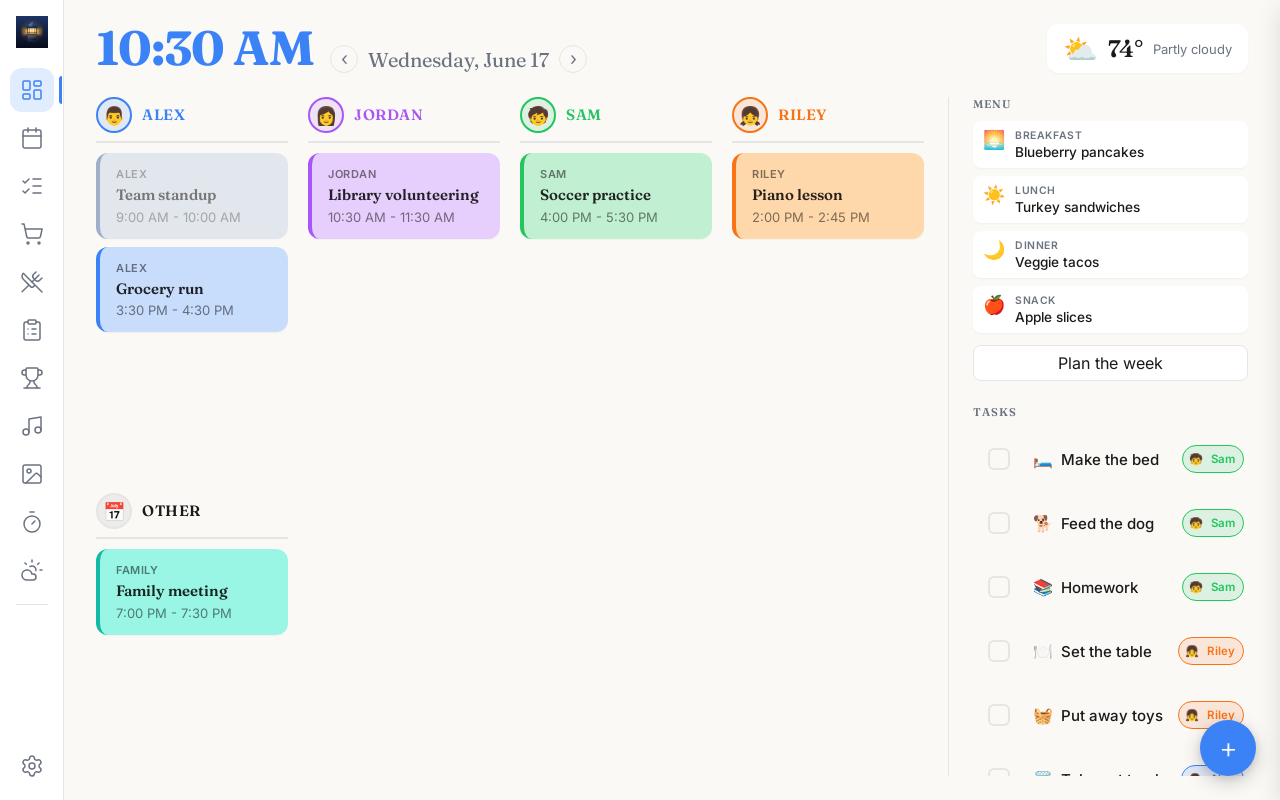
The Family layout is a per-member calendar view designed for a family command center display.
- Top bar: The current time (styled in the theme’s accent color), the date, and a compact weather widget. Clicking the weather widget opens the full weather view.
- Main area: One column per family member. Each column shows the member’s avatar, their name (color-coded to match their assigned color), and their calendar events for the day. Only members with a
calendar_entityassigned in Settings > Family Members get a column. Events that don’t match any member’s calendar appear in an “Other” column. - Sidebar (300px, right side): Contains the Menu widget (today’s meals from AnyList) and the Tasks widget (todo items from Home Assistant or chores). If you turn on Expiring products or Low stock under Settings → Integrations → Grocy, those cards also appear here. See Grocery.
Classic
The original three-column layout:
| Section | Position | Contents |
|---|---|---|
| Left | Left column | Large clock, date, personalized greeting |
| Center | Middle column | Today’s events list |
| Right | Right column | Weather, task checklist, countdown widget |
Good for simple setups where per-member calendar columns are not needed.
Compact
A single-column, vertically scrollable layout. All dashboard content is stacked in one column. Best for mobile devices, tablets in portrait orientation, or narrow screens.
Top bar (Family layout)
In the Family layout, the top bar displays:
- Time: A large clock styled in the theme’s accent color. Updates every second.
- Date: The full date in “Wednesday, March 28” format.
- Weather: A compact weather widget showing the icon, temperature, and condition. Click it to open the full weather view.
Per-member calendar columns (Family layout)
The main area of the Family layout shows one column for each family member who has a calendar entity assigned.
- Each column header shows the member’s avatar and name (color-coded).
- Below the header, the member’s calendar events for the day are listed in chronological order.
- Each event card shows the event title and time (“All day” for all-day events, or start-end times).
- Events from calendars that don’t match any family member’s assigned calendar appear in a catch-all “Other” column on the right.
To assign a calendar to a family member, go to Settings > Family Members, edit the member, and select a calendar from the Calendar dropdown. See Family Members for details.
Meal plan widget
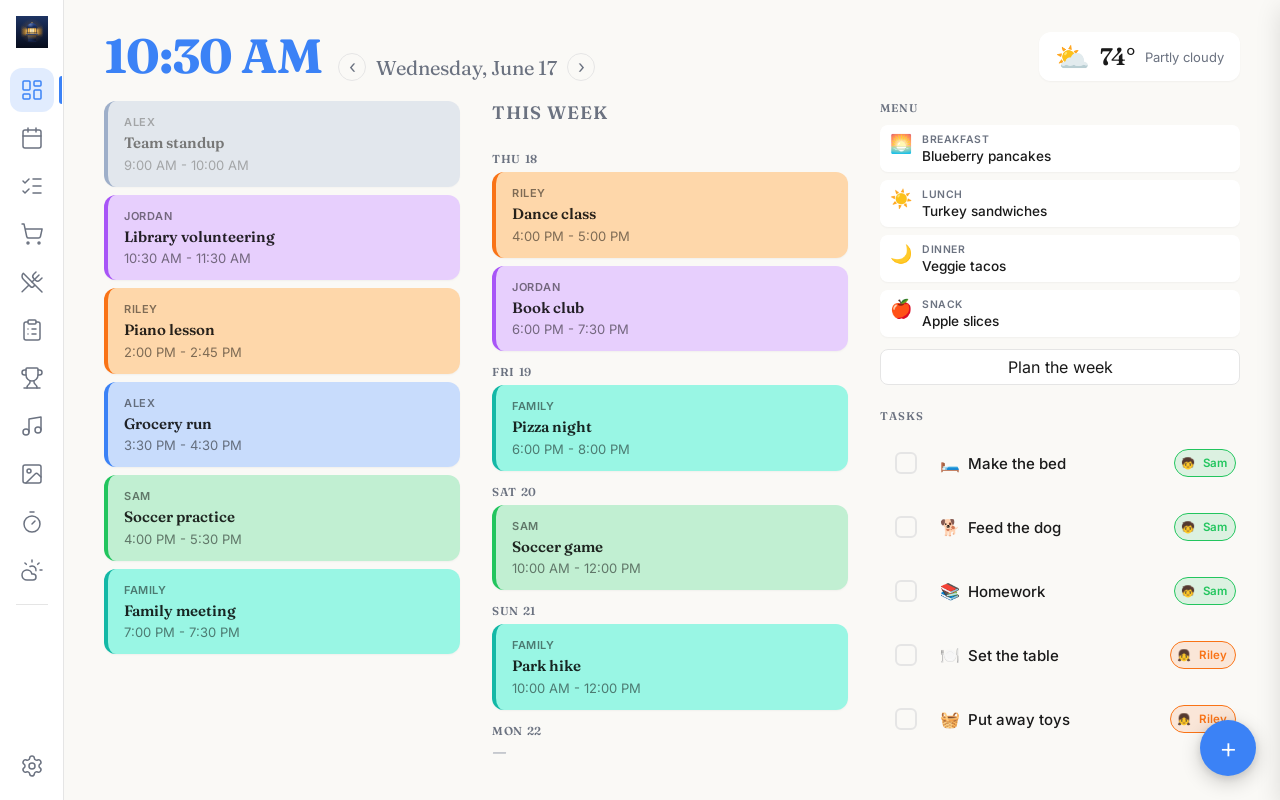
The meal plan widget appears in the sidebar (Family layout) or the right column (Classic layout). It shows today’s planned meals:
| Meal | Icon |
|---|---|
| Breakfast | Sunrise |
| Lunch | Sun |
| Dinner | Moon |
| Snack | Apple |
The card stays visible when today has no meals, with an Add meal row for each type so you can add one from the dashboard. Tap a row to edit it, or Plan the week to open the Meals week view. You can also fill the plan from Beacon’s MCP tools or the AnyList sync script.
Weather widget
The weather widget appears in the top bar (Family layout) or the right column (Classic layout) when a weather entity is configured. It displays:
- Weather icon: An emoji representing the current condition (sunny, cloudy, rainy, etc.)
- Temperature: The current temperature rounded to the nearest degree
- Condition: A human-readable label like “Partly Cloudy” or “Sunny”
Supported weather conditions
| Condition | Icon |
|---|---|
| sunny | Sun |
| clear-night | Crescent moon |
| cloudy | Cloud |
| partlycloudy | Sun behind cloud |
| rainy | Rain cloud |
| pouring | Heavy rain |
| snowy | Snowflake |
| snowy-rainy | Sleet |
| fog | Fog |
| hail | Hail |
| lightning | Lightning bolt |
| lightning-rainy | Thunderstorm |
| windy | Wind |
| exceptional | Warning |
The weather data comes from whatever weather entity you configure (Met.no, OpenWeatherMap, AccuWeather, etc.) and refreshes every 10 minutes.
Task checklist
Below the weather widget, a task checklist shows today’s chores. Each task displays:
- A checkbox that you can tap to mark the chore complete
- The chore icon (emoji) and chore name
Tasks are divided into two groups:
- Incomplete tasks appear first with empty checkboxes
- Completed tasks appear below with checked boxes and strikethrough text
If all tasks are completed, the checklist shows “All done!”. If no chores are configured, it shows “No tasks for today”.
Tapping a completed task’s checkbox will undo the completion.
Note: The dashboard checklist uses the first family member for tracking completions. For per-member chore management, use the full Chores panel (see Chores).
Countdown widget
The countdown widget displays upcoming events or milestones with a “days until” counter. It appears below the task checklist.
Two types of countdowns
-
Calendar-based countdowns: Any future calendar event that has “countdown” or “#countdown” in its description is automatically picked up as a countdown item.
-
Manual countdowns: Click the + button in the countdown header to add a custom countdown with a name and target date. Manual countdowns are stored in the browser’s localStorage.
How it works
- Each countdown item shows the number of days remaining, the event title, and the formatted date (e.g., “Mar 28”)
- Items are sorted by date (soonest first)
- Past countdowns (where the date has already passed) are automatically hidden
- Manual countdowns have an x button to remove them; calendar-based countdowns cannot be removed from this widget (edit the event instead)
Creating a countdown from a calendar event
- Create or edit a calendar event
- In the Description field, include the word
countdownor#countdownanywhere in the text - The event will appear in the countdown widget on the dashboard
Example description: #countdown Summer vacation starts!
Creating a manual countdown
- Click the + button in the Countdown header
- Enter an event name (e.g., “Spring Break”)
- Select a target date
- Click Add
The widget is hidden entirely if there are no active countdowns and the add form is not open.
Customizing the dashboard
| What to customize | How |
|---|---|
| Dashboard layout | Settings > General > Dashboard Layout — choose Family, Classic, or Compact |
| Family member columns | Assign a calendar_entity to each member in Settings > Family Members |
| Family name in greeting (Classic) | Set family_name in configuration |
| Weather display | Set weather_entity in configuration; leave blank to hide weather |
| Meal plan | Configure AnyList sync to populate today’s meals |
| Task list content | Add chores in the Chores panel, or configure HA todo entities |
| Countdown items | Add #countdown to event descriptions, or add manual countdowns |
| Theme and colors | Use the theme selector in the sidebar |
Troubleshooting
Weather does not appear
- Verify you have a weather entity configured: check Developer Tools > States for entities starting with
weather. - Make sure the
weather_entityconfig option matches the entity ID exactly - Beacon fetches weather on connection — if HA is not connected, weather will be blank
Clock shows wrong time
The clock uses the browser’s local time, not Home Assistant’s time. Make sure the device running Beacon has the correct timezone set in its operating system settings.
”Nothing on the calendar today” even though events exist
- Events are filtered to today’s date using the browser’s local date
- If the browser’s timezone differs from your HA timezone, events may appear on the wrong day
- Verify events exist for today in the Calendar view